When you buy one of the best laptops available today, you usually expect it to last several years without major issues.
But sometimes, things don’t go according to plan.
Over the years, I’ve owned more laptops than I can count, and one problem has followed me across many of them: excessive heat. A laptop that runs too hot is more than just annoying. Over time, overheating can lead to thermal throttling, reduced performance, battery problems, and in extreme cases, complete hardware failure.
If your laptop feels more like a portable space heater than a reliable computer, don’t replace it just yet. There are several things you can do to bring temperatures down and make your machine run properly again.
First, Make Sure Your Laptop Is Actually Overheating
Before trying to fix an overheating laptop, the first step is figuring out whether heat is truly the problem.
That sounds obvious, but I learned this lesson the hard way.
I’ve never had perfect luck with laptops. Looking back, many of my problems came from buying inexpensive machines without doing enough research. Out of nearly 10 laptops I’ve owned, most eventually developed some kind of performance issue — but overheating wasn’t always the real cause.
Years ago, when one of my laptops started running slowly and feeling unusually hot, I did what many people do: I searched online and bought the cheapest cooling pad I could find.
For a few days, I convinced myself it was working.
It wasn’t.
Eventually, the laptop stopped booting completely, and I discovered the actual problem was related to the CPU rather than temperatures.
That doesn’t mean your laptop has the same issue, but it highlights an important point: diagnose first, fix second.
How to Tell If Your Laptop Is Running Too Hot
Most people start troubleshooting when they notice one of two things:
- The laptop feels extremely hot and the fans are constantly running
- Performance drops, games stutter, or the system crashes unexpectedly
However, a warm laptop does not automatically mean something is wrong.
Modern laptops pack powerful components into extremely small spaces, so some heat is completely normal.
The best way to check is by monitoring CPU temperatures.
One of my preferred tools is HWMonitor, which can show:
- CPU temperatures
- Fan speeds
- Voltage readings
- Other important hardware sensors
Check temperatures while your laptop is idle and compare them with temperatures under heavy workloads, such as gaming, video editing, or demanding applications.
The exact safe temperature depends on your processor and laptop design. A short temperature spike is usually not a problem.
What should concern you is:
- Constant high temperatures
- Thermal throttling
- Sudden shutdowns
- Crashes
- Fans running at maximum speed during light tasks
Even powerful gaming laptops can run hot under heavy workloads, but they should still be able to manage their temperatures.
Improve Airflow Before Buying Anything
One of the simplest ways to reduce laptop temperatures is also one of the easiest to ignore:
Improve airflow.
If you regularly use your laptop directly on your bed, couch, or even your lap, you may be blocking the vents that keep it cool.
Despite the name, laptops work best when they have space around them — similar to desktop PCs.
A simple solution is placing your laptop on a flat, hard surface and slightly raising the bottom so air can move underneath.
Some people use books or random objects to lift their laptops, but the key is not the height itself. The important thing is keeping the underside exposed.
A proper laptop stand is a better long-term solution. It improves airflow, makes typing more comfortable, and keeps your device away from body heat.
Prices range from inexpensive models around $10 to premium stands costing over $100, so there are plenty of options depending on your needs.
Do Cooling Pads Actually Work?
Laptop cooling pads are one of the most common solutions for overheating problems.
I’ve used several over the years. Some helped. Some barely made any difference.
The reason is simple: cooling pads only work if they improve the airflow design of your specific laptop.
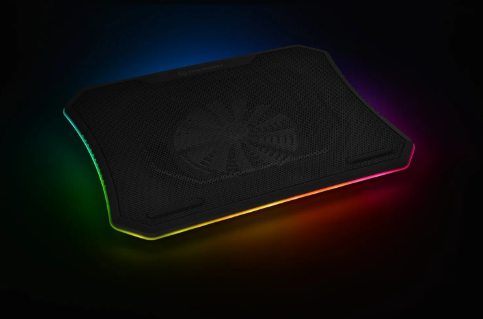
Most cooling pads use USB-powered fans that push additional air toward the laptop’s intake vents. Some also include adjustable height settings and RGB lighting.
But buying the model with the most fans is not always the right choice.
Before purchasing one, check:
- Where your laptop’s intake vents are located
- Whether the cooling pad’s fans line up with those vents
- Whether the cooler matches your laptop’s size
If the airflow does not match your laptop’s cooling system, the results may be disappointing.
A cheaper cooling pad with good airflow placement can outperform a more expensive model that does not fit your laptop properly.
Clean Your Laptop Regularly
If your laptop is new and overheating immediately, dust probably is not the problem.
But after months or years of use, internal cleaning becomes essential.
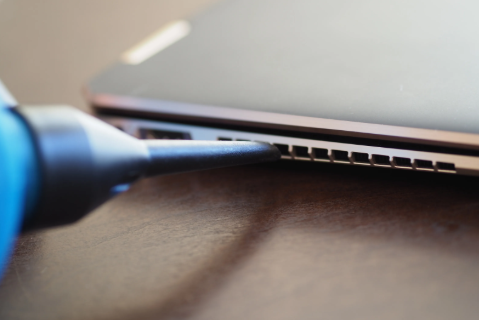
Dust buildup inside the fans and vents can restrict airflow and force your cooling system to work harder.
Cleaning your laptop fan every few months can help maintain performance.
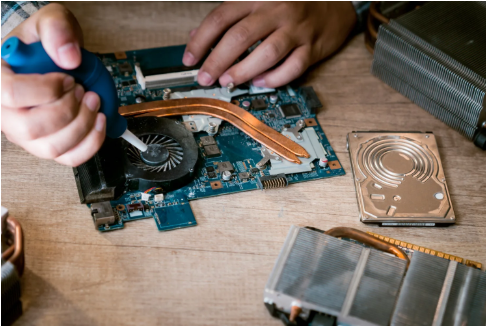
For older laptops, deeper maintenance may also help, including:
- Cleaning internal components
- Removing dust from heatsinks
- Replacing thermal paste
However, opening a laptop is more complicated than cleaning a desktop PC.
Before doing anything internally, check your warranty and manufacturer instructions. If you are uncomfortable working with internal hardware, professional service may be the safer option.
That said, learning basic maintenance can save money.
After I became more comfortable building PCs and opening electronics, I started maintaining my own laptops. While it never magically transformed an old budget laptop into a high-end machine, proper cleaning helped extend its life significantly.
Maybe Heat Isn’t the Real Problem
Sometimes a laptop runs poorly even after you solve the temperature issue.
In that case, look at other possible causes.
Check Your Power Settings
Your laptop may be using a balanced or power-saving mode that limits performance.
Switching to a high-performance profile can improve speed, although it may reduce battery life.
On the other hand, if heat is the problem, lowering performance settings can help keep temperatures under control.
Update Your Drivers
Outdated drivers can cause:
- Crashes
- Performance drops
- Gaming issues
Keep important drivers updated, but be careful with beta versions unless you are specifically fixing a known problem.
Consider Your Workload
Sometimes the laptop simply cannot handle what you are asking it to do.
Budget laptops may struggle with:
- Modern games
- Video editing
- Heavy multitasking
- Large creative applications
Closing unnecessary background programs can reduce system stress.
Some Laptops Are Simply Designed to Run Hot
This is another lesson I learned the hard way.
Years ago, I tried running World of Warcraft for hours on a budget Lenovo laptop with integrated graphics during the middle of summer.
It survived, but barely.
Modern budget laptops are much more capable than machines from the past, but software and gaming demands have increased dramatically as well.
If your laptop still runs hot after trying everything above, you may need to make compromises:
- Reduce graphics settings
- Close unnecessary applications
- Limit demanding workloads
- Consider undervolting if your hardware supports it
Undervolting can reduce temperatures by lowering CPU or GPU power consumption, but it is an advanced technique and should only be done with hardware-specific guidance.
When Should You Consider Repair or Replacement?
If your laptop is several years old, some heat issues may simply come with aging hardware.
However, if a brand-new laptop constantly overheats, becomes unstable, or performs far below expectations, it may be worth using the warranty rather than attempting repairs yourself.
Not every laptop can be made cooler.
Sometimes the design itself is the problem.
The goal is not to make your laptop run cold — it is to make sure it runs reliably, efficiently, and within safe operating limits.
A little heat is normal.
A laptop that sounds like a jet engine and slows to a crawl is not.